How to Save and Track Brands with the Trackee API in 2026
Most Trackee endpoints work the same way: you hand them a brand and a few parameters, and they run a check. If you do that once, retyping the name, domain, aliases, and tracked engines every call is fine. If you do it fifty times a day, it gets old fast, and it's easy to send slightly different values each time and end up with data you can't compare.
Brands fix that. You save a brand once with everything the other endpoints need, get back an id, and pass that id around instead. The stored brand is also the thing scheduled monitoring attaches history to, so it's the foundation for watching your visibility change over time.
Creating and reading brands is FREE. Every request in this tutorial costs 0 credits, so you can set up as many brands as you want before you spend anything.
If you want to see what a check looks like before touching the API, run the AI Visibility Checker in your browser. No code, no key, just type a brand and a prompt.
What you need
- A free Trackee account.
- An access key from your dashboard.
- The
x-access-keyheader on every request.
That's the whole setup. No SDK, no OAuth dance, just an API key and curl.
Step 1: Get your API key
Log in to your Trackee dashboard and copy your access key. You'll send it as the x-access-key header on every call.
If you'd rather not paste the key inline each time, export it once in your shell:
export TRACKEE_KEY="YOUR_API_KEY"Then use $TRACKEE_KEY in place of the literal key. The examples below spell out YOUR_API_KEY so they're copy-paste ready either way.
Step 2: Create a brand
Send a POST to /v1/brands with the brand's core details. Here we're saving Salesforce.
curl -X POST https://api.trackee.dev/v1/brands \
  -H "x-access-key: YOUR_API_KEY" \
  -H "Content-Type: application/json" \
  -d '{ "name": "Salesforce", "domain": "salesforce.com", "aliases": ["SFDC"], "category": "CRM", "engines": ["chatgpt", "claude"] }'
You get back the saved brand, including the id you'll reuse everywhere else:
{
  "success": true,
  "data": {
    "id": "6a8b2e3ba6701c53f6dcc743",
    "name": "Salesforce",
    "domain": "salesforce.com",
    "aliases": ["SFDC"],
    "category": "CRM",
    "location": "United States",
    "engines": ["chatgpt", "claude"],
    "prompts": [],
    "competitors": []
  }
}
Here's what each stored field does:
nameis how the brand shows up in your dashboard and reports.domainis the canonical site Trackee looks for when it measures whether an engine actually points at you.aliasesare the other ways people write the brand, likeSFDChere. Trackee counts a match when an engine mentions any of them, not just the exact name.categorygroups the brand and gives context to checks that care about your market.enginesare the AI engines you want tracked by default,chatgptandclaudein this case.locationgets filled in automatically when you don't pass one, which is whyUnited Statesshows up even though we didn't send it.
Notice that prompts and competitors came back empty. We'll fill those in next. Save the id from the response, since every request after this uses it.
Reads and writes to brands cost 0 credits. Creating this brand didn't touch your balance.
Step 3: Add prompts and competitors
A brand on its own tells Trackee who you are. Prompts and competitors tell it what to check and who to compare you against.
Prompts are the questions you want to see whether an engine surfaces your brand for. Add them with a PUT to /v1/brands/{id}/prompts:
curl -X PUT https://api.trackee.dev/v1/brands/6a8b2e3ba6701c53f6dcc743/prompts \
  -H "x-access-key: YOUR_API_KEY" \
  -H "Content-Type: application/json" \
  -d '{ "prompts": ["best crm software", "top sales tools"] }'
Competitors are the domains you want to measure yourself against. When Trackee runs a check, it can tell you not just whether you showed up but who showed up instead. Add them with a PUT to /v1/brands/{id}/competitors:
curl -X PUT https://api.trackee.dev/v1/brands/6a8b2e3ba6701c53f6dcc743/competitors \
  -H "x-access-key: YOUR_API_KEY" \
  -H "Content-Type: application/json" \
  -d '{ "competitors": ["hubspot.com", "zoho.com"] }'
Now the brand carries its own prompts and competitor list. Any endpoint you point at this id picks those up automatically, so you stop passing them by hand on every call.
List, update, and delete
Once you have a few brands, list them all with a GET to /v1/brands:
curl https://api.trackee.dev/v1/brands \
  -H "x-access-key: YOUR_API_KEY"
That returns every brand on your account with its stored fields, so you can grab the id you need without keeping a note somewhere.
If you'd rather not work from the terminal, you can save and manage every brand in the dashboard instead. Agencies run all their clients from one workspace here, so a whole roster of brands lives in a single place.
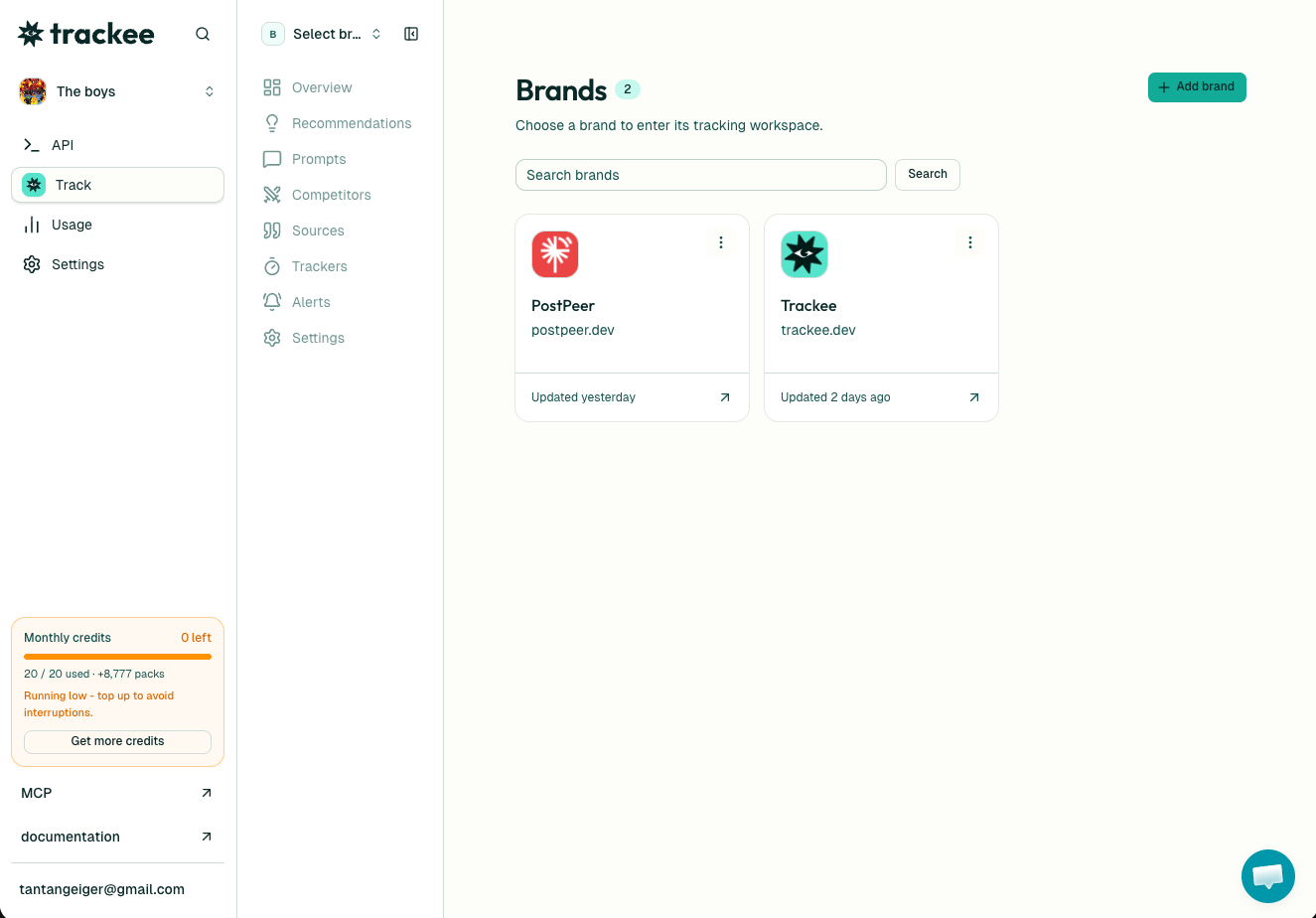
To change a field, send a PATCH to /v1/brands/{id} with just the keys you want to update. You might swap the tracked engines, fix a typo in the domain, or add an alias you missed. PATCH only touches what you send, so the rest of the brand stays put.
To remove a brand, send a DELETE to /v1/brands/{id}. That clears the brand and its attached prompts and competitors. Like everything else here, listing, updating, and deleting brands cost 0 credits.
Why brands are the foundation
A saved brand plus its prompts is exactly what you feed the AI Visibility API. Instead of describing Salesforce and its prompts on every visibility check, you pass one id and Trackee already knows the domain to match, the aliases to accept, the engines to hit, and the competitors to rank you against.
It also matters over time. When scheduled monitoring runs your prompts on a cadence, it attaches each result to the brand. That's how you get a history: not one snapshot of where you rank today, but a line you can watch move as you publish content, ship changes, or watch a competitor climb. The brand is the anchor all of that history hangs on. To set that cadence up, point the Trackers API at a brand id and it runs recurring scans for you.
If you'd rather not script any of this, Trackee has an MCP server so an AI agent can create brands and pull their history in plain language.
Because managing brands is free, there's no reason not to set them up carefully. Get the domain, aliases, and prompts right once, and every paid check you run afterward is measuring the right thing.
What's next
- Read the Brand Tracking API page for the full picture of what a brand can hold.
- Browse the API reference for every field and endpoint in detail.
- Check the free plan and start pointing brands at the AI Visibility API.
Save a brand once, wire in your prompts and competitors, and reuse it. It's free, and it's the piece everything else in Trackee builds on.