How to Run an On-Page SEO Audit via API in 2026
You publish a page. It looks fine in the browser. Then three weeks later you notice the title tag is blank, there's no H1, and two links in the footer 404. Nobody caught it because nobody was looking.
On-page SEO is full of small things that quietly break. A missing meta description, an image with no alt text, a render-blocking script that pushes your load time past what search and AI crawlers care to wait for. Each one is minor. Together they drag a page down.
The usual fix is to open a crawler, wait for it to spider the site, and read a report. That's fine once a month. It's useless when you want to check a single page RIGHT before it goes live.
Trackee does the audit in one API call. You send a URL, it fetches and analyzes the page live, and hands back an on-page score plus the exact list of what's wrong. No crawl, no background job, no polling. This tutorial walks through the POST /v1/audit endpoint end to end.
If you'd rather see it before writing any code, the free SEO audit tool runs the same check in the browser. Paste a URL, get the score and issues, no account needed.
What you need
Three things to make your first call:
- A free Trackee account. The free plan has enough credits to test everything here.
- An access key from your dashboard.
- The
x-access-keyheader on every request.
That's the whole setup. No SDK, no OAuth.
Step 1: Get your API key
Sign in to your Trackee dashboard and open the API keys section. Create a key and copy it somewhere safe, since the full value is only shown once.
Every request to the Audit endpoint sends that key in the x-access-key header. Keep it on your server, not in client-side code.
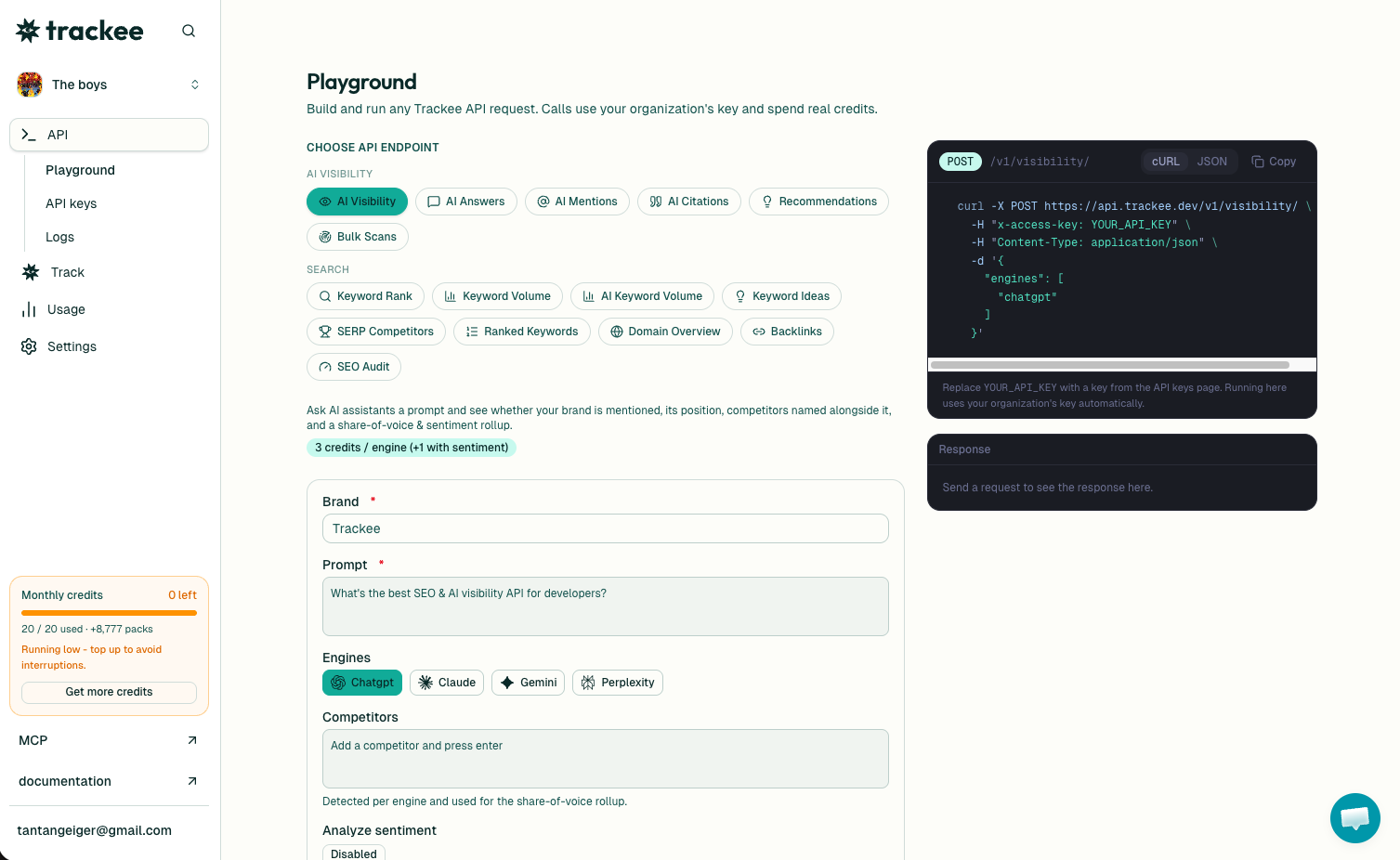
You can also build and run the request right in the dashboard playground first, then copy the working curl into your own code.
Step 2: Audit a page
Here's a full request. Swap YOUR_API_KEY for the key you just created.
curl -X POST https://api.trackee.dev/v1/audit \
  -H "x-access-key: YOUR_API_KEY" \
  -H "Content-Type: application/json" \
  -d '{ "url": "https://example.com/pricing" }'
The response comes back like this:
{
  "success": true,
  "credits": { "charged": 2, "remaining": 4998 },
  "data": {
    "url": "https://example.com/pricing",
    "onpage_score": 91.59,
    "issues": ["no_image_alt", "title_too_short", "has_render_blocking_resources"],
    "meta": { "title": "Pricing", "title_length": 7 }
  }
}
That's the entire audit for one page, and it cost 2 credits.
Reading the response
success tells you the call went through. credits.charged is what this audit cost, and credits.remaining is your balance after it. Every audit is 2 credits per page, flat, so running it a lot won't surprise you.
Inside data:
url is the page that was audited, echoed back so you can log it.
onpage_score is the headline number, out of 100. In the example it's 91.59. A high score means the page is structurally clean. A low one means several checks failed. This is the single number to graph over time or gate a deploy on.
issues is the good part. It's the list of checks that actually FAILED on this page, by name. In the example there are three:
no_image_altmeans at least one image has no alt text. Bad for accessibility and for image search.title_too_shortmeans the title tag exists but is thin. You can see why in the meta below, it's just "Pricing" at 7 characters.has_render_blocking_resourcesmeans something (usually CSS or JS in the head) is holding up the render.
The endpoint runs around 60 on-page checks. Things like a missing title or description, no H1, broken links, redirects, and render-blocking resources. The response only returns the ones that failed, so a clean page comes back with a short or empty issues array and you don't have to sift through passing checks.
meta gives you the summary numbers behind the issues. Here it's the title string and its title_length. That's how you turn "title_too_short" into an actual fix. You know the current title and exactly how many characters it is.
Step 3: Wire it into your publish flow
The reason this endpoint is 2 credits and instant is so you can run it on EVERY publish, not once a month.
A simple pattern: in CI, after a deploy, loop over the URLs you care about and audit each one. Fail the build if any page's onpage_score drops below a threshold, or if a specific issue shows up.
for url in \
  "https://example.com/" \
  "https://example.com/pricing" \
  "https://example.com/blog/launch"; do
  curl -s -X POST https://api.trackee.dev/v1/audit \
    -H "x-access-key: YOUR_API_KEY" \
    -H "Content-Type: application/json" \
    -d "{ \"url\": \"$url\" }"
done
Parse each response, check onpage_score and issues, and decide whether to block the release. Since the check is live and single-page, there's no crawl step to wait on. A CMS hook works the same way. When an editor hits publish, audit that one URL and warn them if the score came back low before the page ever reaches readers.
No code? Use the dashboard
Not every team wants to wire this into a pipeline. The same audit runs in the Trackee dashboard with no code, and agencies use the Brands view to audit pages across many client sites in one place instead of juggling a dozen separate tools.
Let an agent audit for you
If you work with AI coding agents, this fits naturally. Trackee has an MCP server and a coding skill, so an agent can call the audit in plain language. You say "audit the three pages I just changed and tell me what broke," and it hits /v1/audit for each URL, reads the issues array, and reports back. No manual curl. The AI agent setup walks through connecting it.
What's next
You can now audit any URL, read the score and exact issues, and run it at scale in CI or before publishing.
A few good next steps:
- Read the full SEO Audit API page for the complete parameter and field list.
- Browse the API reference for the other endpoints.
- Start on the free plan and upgrade when your audit volume grows.
Pick the ten pages that matter most on your site and audit them right now. The blank title tags and broken links you find will not be the ones you expected.